How to free up storage on your phone

Running out of storage tends to sneak up on you gradually and then hit all at once - usually right when you are trying to take a photo or need to download something. Most phones waste a surprising amount of space on things you can clean up in under 30 minutes without losing anything you actually care about.
The trick is knowing what you are dealing with before you start deleting. Spend 60 seconds looking at the storage breakdown first - it tells you exactly which category deserves your attention.
First, see what is actually using your space
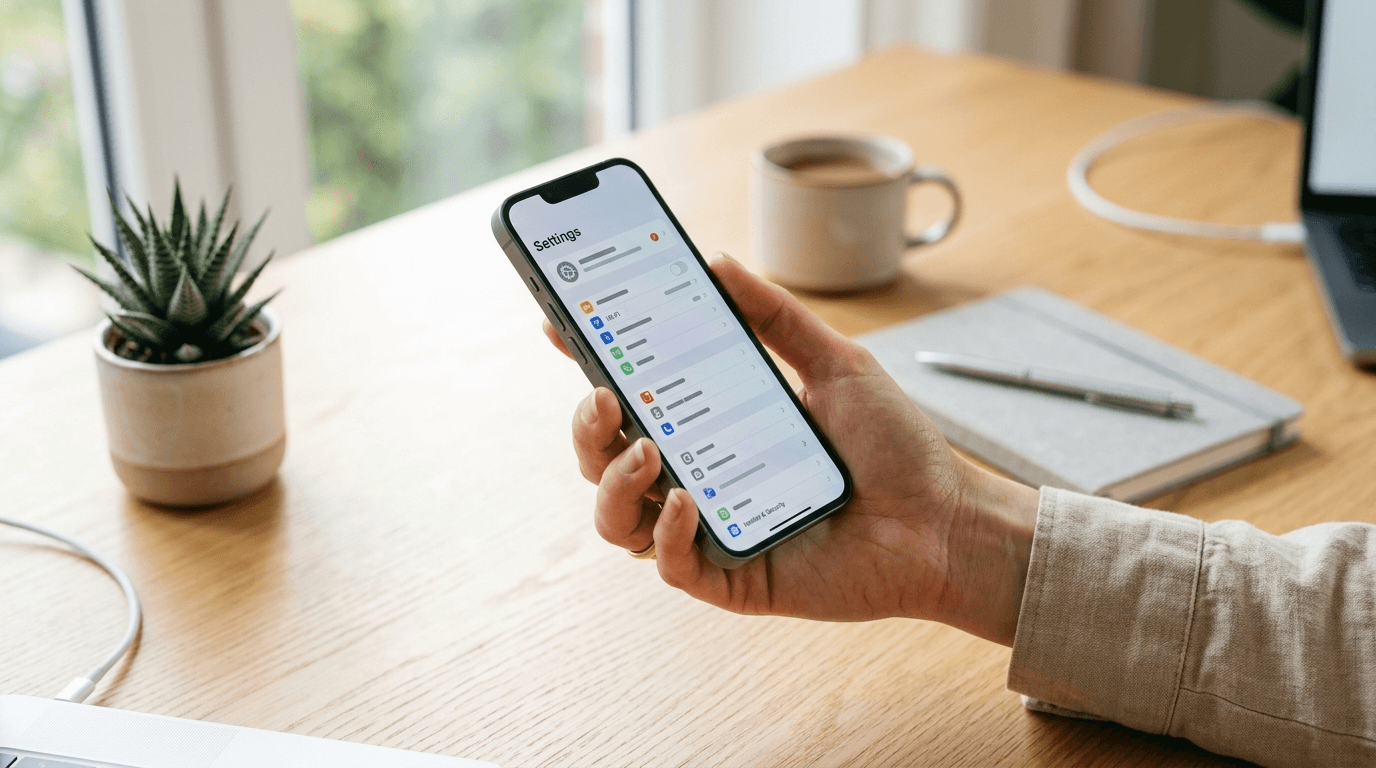
On iPhone, go to Settings, then General, then iPhone Storage. A color-coded bar shows how space is split among photos, apps, messages, and media. Scroll down and you will find system-generated suggestions too - apps you have not opened in months, large attachments, and other items the phone is already flagging for cleanup.
On Android, open Settings and look for Storage. Depending on your phone brand, it may appear under Storage and cache or inside a Battery and device care menu. The breakdown shows space used by apps, images, video, audio, and documents. Samsung phones include a built-in cleanup tool; Pixel phones have the Files by Google app for a similar view. Check this screen first. You want to know which category is actually the problem before touching anything.
Photos and videos are usually the biggest culprit
Photos and videos take up more space than most people realize - often far more than apps or messages combined. The most practical fix is to back them up and then let the phone keep only smaller versions locally.
On iPhone, turn on iCloud Photos under Settings > [your name] > iCloud > Photos, then enable Optimize iPhone Storage. The phone keeps smaller device-optimized copies on the device and full-resolution originals in iCloud. You can still view or download any photo on demand; it just no longer sits on the device by default. On Android, Google Photos works the same way - back up your library, then use the app's free-up space option to remove local copies of anything already stored safely in the cloud.
Even with backup running, a manual pass is worth doing. Screenshots pile up fast, blurry duplicates accumulate, and one screen recording from a tech support call can run several gigabytes. If you want a safety net before clearing anything, connect your phone to a computer and copy the full camera roll first.
Clear app caches and offload apps you do not use
Apps collect temporary data over time - cached images, preloaded feeds, offline content, and background files that do not always get cleaned up on their own.
- On iPhone, go to Settings, then General, then iPhone Storage, and tap any app. Offload App removes the app binary but keeps its documents and data intact. Reinstalling later restores all your settings and saved content. Use this for apps you want to keep but rarely open.
- On Android, go to Settings, then Apps, tap an app, then Storage and cache, and tap Clear Cache. Temporary files go away without touching your account data or personal settings.
- Delete apps you have not opened in months. On iPhone, press and hold an icon and choose Remove App. On Android, press and hold and choose Uninstall.
- Streaming apps deserve a closer look. Spotify, Netflix, YouTube Music, and podcast apps all cache offline content that can run several gigabytes. Open each one, find the Downloads section, and delete anything you have already listened to or watched.
Delete downloaded media and old files
Downloaded Netflix episodes from a flight six months ago are probably still on your phone. Same with the Spotify playlist you made for a road trip and the Disney Plus season you finished on vacation. Open each streaming app you use and clear out the Downloads section.
The same goes for your general file storage. Open the Files app on iPhone or Files by Google on Android and look through the Downloads folder. PDF receipts, email attachments you opened once, APK installer files on Android, old presentation decks - all of it accumulates there. Delete anything you do not need.
Clear out message attachments
Every photo, video, GIF, and voice memo sent or received in Messages, WhatsApp, or any other chat app gets saved to your phone. A few active group chats and a couple of years of photos can quietly eat through a lot of storage.
On iPhone, go to Settings, then General, then iPhone Storage, then Messages. You will see subcategories for photos, videos, GIFs, and other attachments, with the total size of each. Tap into any category to review large items and delete what you no longer need.
You can also shorten how long your phone keeps messages. In Settings under Messages, find Keep Messages and switch it from Forever to 30 Days or 1 Year. That keeps old conversations and their attachments from piling up indefinitely. Most third-party messaging apps have a similar option under their storage or data settings.
Empty Recently Deleted and Trash
This is the one most people miss. When you delete a photo, it does not disappear right away - it moves to a Recently Deleted album and stays there for about 30 days before the phone permanently removes it. Until you empty that album yourself, those files still count against your storage.
On iPhone, open Photos, scroll down to Recently Deleted, and tap Delete All. On Android with Google Photos, go to Library, then Trash, and select Delete All. Do the same for any Trash folder in your Files app. If you have been deleting photos for a while without ever emptying that album, this single step can recover several gigabytes right away.
If you are still short on space
If you have gone through all the steps above and are still running tight on storage, a few more options are worth knowing.
Cloud storage services - iCloud, Google One, and Dropbox - let you move documents, photos, and large files off the device and access them on demand rather than keeping everything local. This works well for large photo libraries and files you need occasionally but not every day.
Android phones with a microSD card slot can accept a physical storage card, which adds meaningful capacity at a relatively low cost. Cards are available in large sizes, and many Android phones let you use one as extended storage for photos and downloaded files. Not every Android phone has the slot though, so check your model's specifications before buying a card. iPhones have no card slot and no way to add physical storage - your options on Apple devices are cloud storage or upgrading to a model with more built-in space.
The category labeled System Data in iPhone Storage (sometimes called Other on older devices) is worth understanding if it looks unusually large. It is a catch-all for caches, system logs, browser data, Siri voice files, and other background content iOS generates over time. The system clears some of it on its own when space runs low. If yours is very large - say, over 10 GB - a full backup followed by an erase and restore can sometimes reduce it. That process takes time, though, and is not worth going through unless you have already worked through every other option.
Quick sequence if you want to go through this in order:
- Check Settings to see which category is using the most space.
- Back up photos to iCloud Photos or Google Photos, then enable Optimize Storage.
- Delete screenshots, duplicates, and long videos from your camera roll.
- Offload or delete apps you have not opened in the past 60 days.
- Remove offline downloads from Netflix, Spotify, Disney Plus, and podcast apps.
- Clear caches for heavy apps like Chrome, Instagram, and Snapchat.
- Review and delete large attachments from Messages and WhatsApp.
- Empty the Recently Deleted album in Photos and the Downloads folder in Files.
Frequently Asked Questions
Senior Staff Writer
Alex has covered telecom, smartphones, and business communications for eight years. Before DeltaThree, he tested gear for a carrier trade publication and ran the wireless desk at a consumer tech site. He pays his own phone bill.