How to make your phone battery last all day

A phone that dies at 3 p.m. is just a pocket-sized brick. The fixes are not complicated, but they are scattered across settings menus that most people never open. Knowing which ones actually matter - and which are folklore left over from the nickel-metal-hydride era - can add hours to your day without spending anything.
No single setting does it alone. The biggest gains come from stacking a few small wins: dimming the screen, cutting background activity, and switching on battery saver before your phone gets desperate.
What actually drains your battery
The screen is the single biggest power draw on almost every smartphone. A bright display at full resolution burns a substantial share of your daily battery. Right behind it are your cellular and Wi-Fi radios: a phone hunting for a weak signal uses far more power than one sitting in good coverage. Background app activity adds up too - apps refreshing their feeds, fetching emails, and pinging location services chip away throughout the day.
Heat is a less obvious but real drain. A phone that runs hot - sitting in a direct-sun car or under a pillow - discharges faster and wears the battery out more quickly over time. In rough order of impact: display brightness, radio signals, background refresh, heat. Tackle those four and you fix most of the problem.
Turn down the screen
The display is your biggest lever. A few changes here can recover 30 to 40 minutes of real-world screen time per day.
- Lower brightness manually or turn on adaptive brightness. Auto-brightness adjusts as lighting around you changes and tends to run brighter than needed indoors.
- Shorten your auto-lock timeout to 30 seconds or 1 minute. Every second the screen stays on when you are not looking at it is wasted power.
- Enable dark mode only if your phone has an OLED or AMOLED screen. On those panels, black pixels are switched off and draw almost no power. On an LCD screen, dark mode is a visual preference, not a battery saver.
- Lower or enable adaptive refresh rate. 120 Hz looks smooth but drains faster. Dropping to 60 Hz or using an adaptive setting that scales down for static content makes a real difference.
- Turn off always-on display if your phone has one. It looks convenient but keeps the panel partially lit at all times.
Rein in background activity
Your phone is constantly doing things you did not ask for. Every app refreshing its feed, syncing data, or checking your location uses power. A full day of that adds up to a meaningful chunk of your battery.
On iPhone, go to Settings, then General, then Background App Refresh. You can turn it off globally or app by app for anything you do not need updated in the background. On Android, the controls live in Settings, then Battery, or in each app's info screen. Look for which apps are allowed to run unrestricted.
Location services are a quiet drain that most people overlook. Go through your app list and set anything that does not genuinely need your location to "while using" instead of "always." Maps needs it. Most other apps do not.
Set email to fetch on a schedule or manually instead of push, unless you need instant delivery. Each push connection wakes up your radio briefly. And if you are not using the mobile hotspot, turn it off. An active hotspot keeps your radio running at full power whether you notice or not.
Use battery saver early
Most people turn on battery saver at 10 or 15 percent, when the situation is already urgent. By then, most of the day is gone. A better habit is to turn it on at 30 or 40 percent, when it can actually do something useful.
Battery saver - Low Power Mode on iPhone, Battery Saver on most Android phones - cuts background refresh, scales back some visual effects, and throttles certain background tasks. The earlier you turn it on, the more runway you get.
On iPhone, add a Low Power Mode tile to Control Center for one-tap access. On Android, many phones let you set a threshold - 30 or 40 percent - where battery saver activates automatically. That option is in Settings, then Battery. Set it once and you will never have to remember.
Battery saver will not double your runtime, but used early it can stretch your battery by an hour or more on a day when you need it.
Charging habits that protect the battery
A lithium-ion battery degrades over time regardless of what you do, but how you charge it determines how fast that happens. A few habits slow the decline considerably.
Try to keep your charge between roughly 20 and 80 percent for daily use. Lithium-ion batteries wear faster when regularly pushed to 100 percent and then dropped near zero. Partial charging - what people call topping up - is not bad for the battery. It is better than deep discharge cycles.
Avoid charging in the heat. A phone in a hot car, sitting in direct sunlight, or plugged in under a pillow degrades faster than one charging in a cool room. If your phone gets noticeably warm while on the charger, move it somewhere with more airflow.
If your phone supports optimized or adaptive charging, turn it on. The feature is available on recent iPhones and many Android phones. It learns your routine and holds the battery just under 100 percent overnight, only finishing the charge before you typically wake up. It costs nothing and is one of the more effective long-term battery health settings on modern phones.
Topping up during the day is fine. Short partial charges - from 40 to 70 percent a few times - are gentler on the battery than a single full cycle from near empty.
Battery myths that do not help
A lot of battery advice predates the smartphone and has not aged well. Here is what to skip.
Force-closing apps does not save battery. Suspended apps in the background use almost no resources on modern iOS or Android. When you force-close an app and then reopen it, your phone has to reload everything from scratch, which often costs more energy than leaving it suspended. Force-close only apps you notice misbehaving or showing unusual drain in your battery stats.
You do not need to drain your battery to zero before charging. That was true for nickel-based batteries a generation ago. Lithium-ion batteries prefer partial charges. Regularly running to zero stresses them.
Overnight charging is fine if optimized charging is on. The feature holds the battery just under 100 percent overnight and finishes the charge before you wake up, limiting the time spent at full. If your phone is older and lacks it, a timer plug that cuts power after a set number of hours is a practical workaround.
When the battery is just worn out
Battery health is a real number you can check. On iPhone, go to Settings, then Battery, then Battery Health and Charging. On Android, look in Settings, then Battery, or use your manufacturer's diagnostics app. Some phones show it natively; others need a third-party tool.
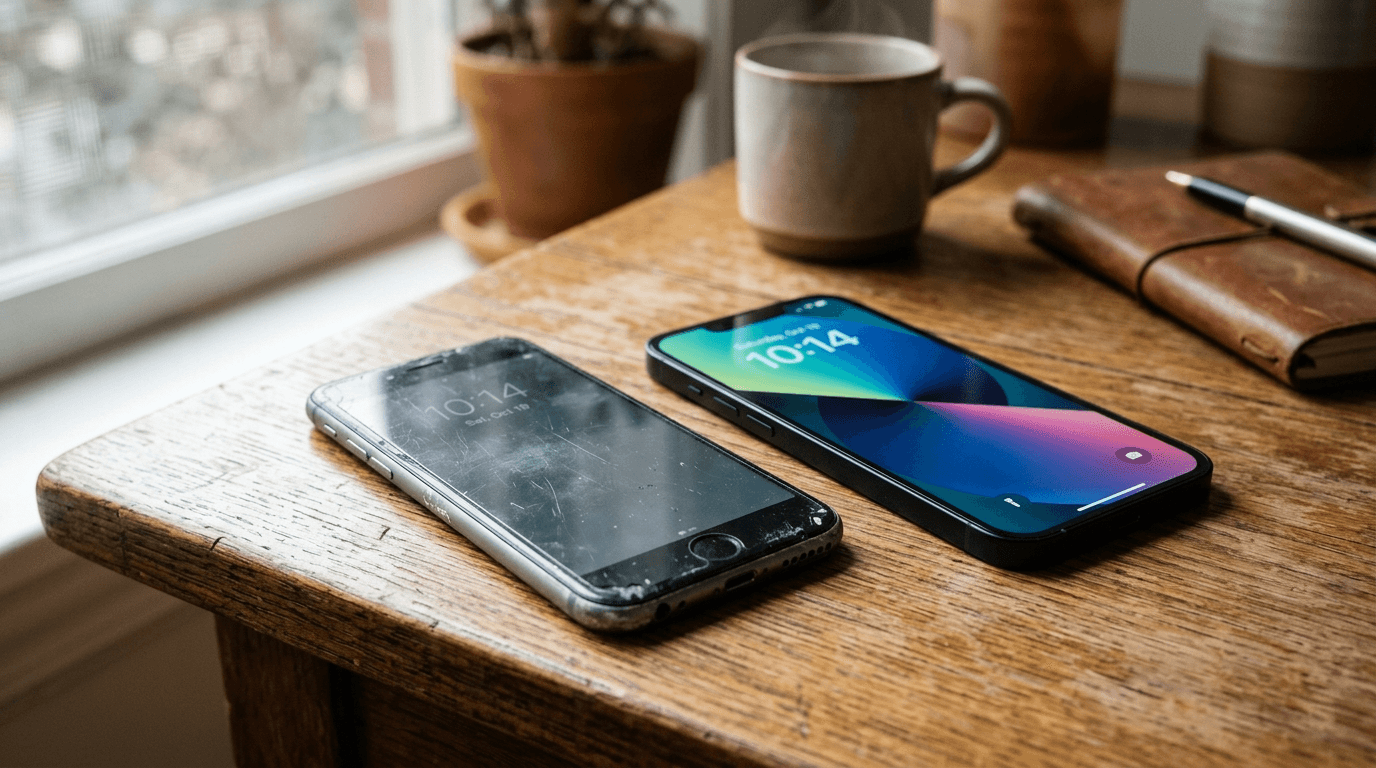
Once health drops below roughly 80 percent, no setting change will give you all-day battery life back. The capacity is smaller. A replacement runs $50 to $90 at most manufacturer service centers or authorized repair shops, and it brings performance close to what the phone had originally. That is a better deal than a new phone for a device that otherwise still works.
If your phone is two or three years old and you find yourself plugging in twice a day, check battery health before assuming you need a new phone. A $70 repair may add another two years of reliable use.
Frequently Asked Questions
Senior Staff Writer
Alex has covered telecom, smartphones, and business communications for eight years. Before DeltaThree, he tested gear for a carrier trade publication and ran the wireless desk at a consumer tech site. He pays his own phone bill.